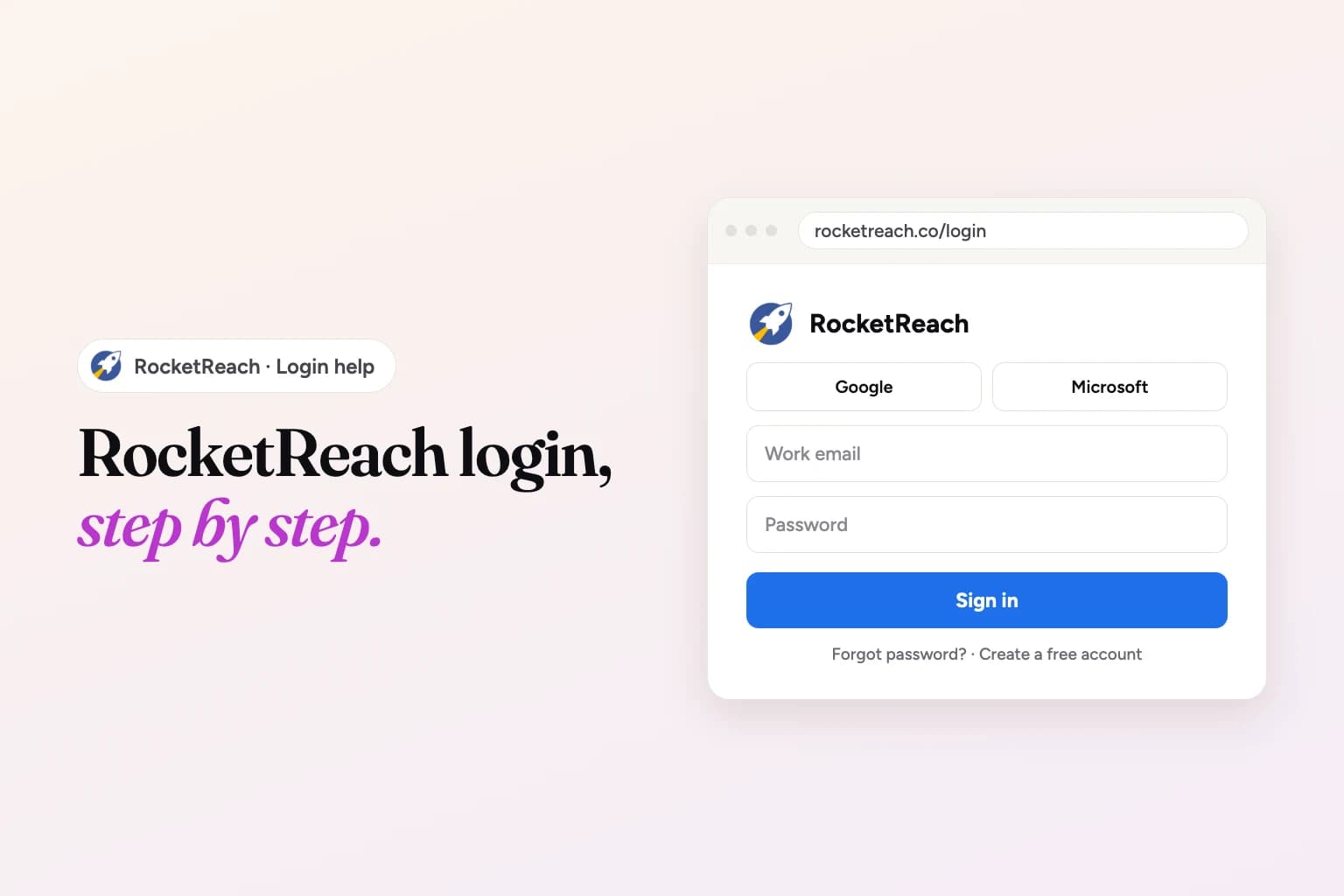
The RocketReach login page is rocketreach.co/login. Sign in with your email and password, or use one of the buttons under the form: Continue with Google, Continue with Microsoft, Continue with Facebook or Login with SSO. Use the same method you signed up with, because that's what most failed logins come down to.
RocketReach's own pages are all that ranks for this search, and they're spread across a login page, a sign-up page and a dozen help articles. So this guide puts it in one place: each way to sign in, every login error RocketReach documents and what to do about it, the new-device check, team invites, what a free account gets, and the Chrome extension's sign-in. We read every page and help article linked here on November 22 2026.
Who's writing this: we make Weezly, a LinkedIn and email outreach tool with its own leads database, so we compete with RocketReach on contact data. We haven't used RocketReach ourselves; everything below comes from its login pages and knowledge base. There's a short note about Weezly near the end.
How to log in to RocketReach
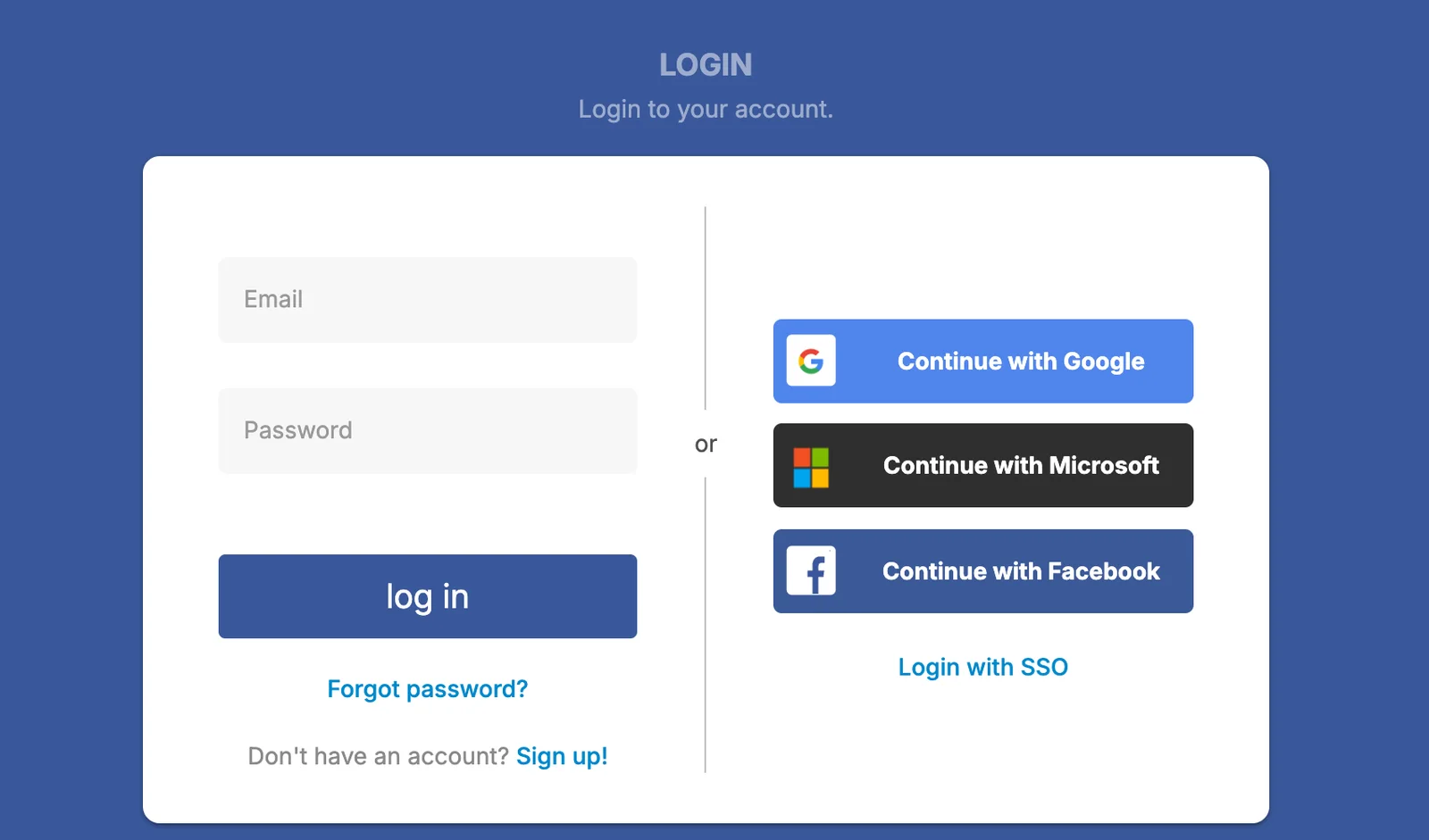
With email and password
- Go to rocketreach.co/login, or click Log In at the top of rocketreach.co.
- Enter your email and password. RocketReach's minimum password length is 8 characters.
- Click log in.
With Google, Microsoft or Facebook
If you created your account with one of these buttons, keep using it. RocketReach's help center is clear: an account made with Google or Facebook has no password, so the email-and-password form won't work for it. You can add a password later (see "Switch from Google or Facebook to a password" below).
With single sign-on (SSO)
Click Login with SSO. RocketReach opens a page that says "Enter your work email to login with SSO", then sends you to your company's identity provider. A few things RocketReach's SSO articles spell out:
- SSO is only on the Ultimate and Custom plans. It isn't available for free or trial users, or on Essentials, Pro and older plans.
- Supported providers: Okta, Microsoft Entra and OneLogin have an easy setup; other SAML 2.0 providers may work through support.
- You don't need a separate invite. If IT assigned you the RocketReach app in your identity provider, just choose SSO on the login page.
- Your old password may still work, unless your Team Owner or Admin has turned on "require single sign-on". Then only SSO does.
- Removed from the app in your identity provider? You'll get an error at sign-in, and only your team admin can free up the seat.
RocketReach login errors and what they mean
RocketReach's knowledge base article "I can't sign into my RocketReach account" (updated April 2026) lists the messages you might see. Here they are with the fix for each:
| What you see | What it means | What to do |
|---|---|---|
| "The email and password did not match." | Wrong password, or no account with that email | Reset your password. If no reset email arrives, the email probably isn't on an account: try another address you might have used. |
| "You created your account using 'Google' as a sign-up method. Please select 'Continue with Google'." (or Facebook) | The account was made with Google or Facebook, not a password | Click Continue with Google or Continue with Facebook. |
| "It looks like you are logging in from an unknown device. Please check your email to confirm your account." | A security check for a new device or location | Open the email and click the link in the same browser, on the same device. See the next section. |
| "This account cannot be logged in at this time. Please contact support@rocketreach.co for assistance." | The account is deactivated or restricted | Email support@rocketreach.co. |
| "Authentication Error: Failed to retrieve login credentials from your OAuth provider." | A Google or Facebook account that's deactivated or restricted | Email support@rocketreach.co. |
| "This team account has expired. Please contact sales@rocketreach.co for re-activation." | A Custom or Enterprise team whose subscription ended | Contact your Account Manager or sales@rocketreach.co. Support can't reactivate these. |
| "403 Forbidden: Access Denied", "API key lacks permission to perform this action" | An API key without the right permissions, or limited account access | Log in to the web app, confirm the account is active, check you're using the right key, then retry. |
The new-device email: why clicking it doesn't log you in
This one trips people up. When RocketReach sees a login from a new device or location, it emails you a confirmation link. RocketReach says you must click that link in the same browser, on the same device you're logging in from. Open the email on your phone while you're logging in on your laptop, and the login won't complete. If you can't find the email, check spam and confirm you're using the right address. RocketReach notes this step is required and can't be skipped.
The verification email never arrives
RocketReach says verification emails usually go out right away but can take up to 10 minutes. After that, check spam and, in Gmail, the Updates and Promotions tabs. If your company's mail server blocks RocketReach, your IT team has to let it through. You can also email support@rocketreach.co from the address on your account.
You're asked to verify a phone number
RocketReach may ask new users to verify both their email and phone number. Open the phone verification screen at rocketreach.co/phone_verify, pick your country code, enter your number, click Verify and type in the code sent by text message.
Reset your RocketReach password
- On the login page, click Forgot password? (or go straight to rocketreach.co/request_password_reset).
- Enter the email address you used to create your RocketReach account.
- Click Reset Password and follow the link in the email.
If you remember your password and just want a new one, log in, open Profile Info on your account page and click Change Password.
Switch from Google or Facebook to a password
Two ways, both from RocketReach's help center:
- Logged in: go to Profile Info, click Disconnect Google (or Disconnect Facebook), set a new password and click Submit.
- Logged out: use Forgot password? with the email on your Google or Facebook account. The email lets you create a password.
This is also how you change the email on an account made with Google or Facebook: the Edit Profile button only appears once they're disconnected.
Joining a RocketReach team
On a team plan, a seat is the paid capacity and a user is the person in it. Only a Team Owner or Team Admin can invite people. If you're the admin:
- Click your initials in the top right and choose Team Management.
- Next to an empty seat, click Invite, enter the person's email and click Send Invite. Filling a seat you already pay for costs nothing extra.
- If every seat is full, click Manage Team, then Add Seats. That raises your bill.
- Replacing someone who left? Remove the assigned user from their seat, then invite the new person to it.
If you're the one invited, open the email and follow the link. Without a RocketReach account, you'll be asked to create one. If you already have a free account under that email, the link moves it onto the team plan. Custom teams bought through sales should ask their Account Manager instead.
What a free RocketReach account gets
The sign-up page at rocketreach.co/signup creates a free account. Here's what RocketReach's knowledge base says it includes, as of November 2026:
- Emails only. Free accounts use Standard Lookup Credits, which unlock email addresses, not phone numbers.
- Three sets of credits in total. You get the first set when you sign up, a second and then a third when you come back after running out. After the third, no more free credits. The number in each set varies; your balance is under Account Settings, Usage & Billing. (An older RocketReach article describes this as "3 months of free trial access with a limited amount of credits".)
- The lowest rate limits. Free users can hit search and lookup limits sooner and may see an upgrade prompt.
- No SSO, which is Ultimate and Custom only.
A credit is only used when RocketReach returns verified contact info. Searching doesn't cost credits. For what the paid plans cost and how lookups and exports are counted, see our RocketReach pricing breakdown.
Signing in to the RocketReach Chrome extension
The extension (RocketReach Chrome Extension, by RocketReach LLC) uses your RocketReach account, so log in on rocketreach.co first. It's on the Chrome Web Store, and RocketReach says Chromium browsers like Edge and Brave can install it from there too. Safari isn't supported.
The extension keeps asking you to log in
RocketReach's fix for this login loop: go to chrome://extensions, open the RocketReach extension and set its site access to On all sites. Then check your Account Settings page shows the right subscription and try again.
It says you're out of credits, but you pay
You're probably logged in to a different account than the one with your subscription. Log out and log back in with the email tied to your paid plan. RocketReach also suggests logging out and in again when the web app says "You're out of contact lookups" on a paid plan.
It shows "Information Not Available"
Refresh first. If it stays, the person isn't in RocketReach, or you're on a page the extension doesn't read. On LinkedIn it works on person and company profiles (and profiles in Recruiter and Sales Navigator), but not on the feed, search results, Recruiter search results, or Sales Navigator lists and searches.
Is RocketReach down?
Check status.rocketreach.co. It covers the website, the extension, the API, MCP and RocketReach Verify. If buttons or icons are missing rather than the whole site, RocketReach's own checklist is: hard refresh (Ctrl + Shift + R, or Command + Shift + R on a Mac), clear the cache, try another browser or device, check your connection or VPN, and turn off extensions like ad blockers.
Contacting RocketReach support
Chat from the question mark in the top right of the site (live agents during business hours), or email support@rocketreach.co. RocketReach says email replies come within 24 business hours, Monday to Friday. Phone support is only for select customers on contract. Include the email you sign in with, the exact error and a screenshot.
Comparing RocketReach with other tools?
RocketReach is strong on breadth: its Chrome Web Store listing describes more than 700 million profiles across 35 million companies, and its Pro and Ultimate plans add phone numbers. If phones matter to you, that's a real advantage. Weezly doesn't have phone data.
Our Leads Database is built around the outreach that comes after: 300M+ contacts, 5,000 verified emails included with every seat, each lead scored 1 to 10 against your ideal customer, and the leads go straight into LinkedIn and email sequences in Weezly Outreach. The Growth plan is $59 a month per LinkedIn sender; the Multichannel seat is $99 a month. You can start a free trial: 21 days on the Multichannel seat, 7 days on the Growth plan. If you're choosing between data tools, our RocketReach vs Apollo comparison lays out plans and data side by side.
RocketReach login FAQ
What is the RocketReach login URL?
It's rocketreach.co/login. SSO starts from the Login with SSO button on that page.
Can I log in to RocketReach with Google or Microsoft?
Yes. The login page has Continue with Google, Continue with Microsoft and Continue with Facebook. Use the one you signed up with.
Why can't I log in to RocketReach with my password?
Most often the account was created with Google or Facebook and has no password. Use that button, or create a password with Forgot password?. Otherwise the password is wrong, or the email isn't on an account.
Why does RocketReach keep asking me to confirm my device?
It's a security check for new devices or locations. Click the link in the email from the same browser and device you're logging in on.
Does RocketReach have SSO?
Yes, on the Ultimate and Custom plans, with Okta, Microsoft Entra, OneLogin or another SAML 2.0 provider. It isn't available on free accounts, Essentials or Pro.
Is RocketReach free?
You can create a free account. It gets three sets of email-only lookup credits in total, then no more. Paid plans add more credits, and some add phone numbers.
How do I delete my free RocketReach account?
Log in, open Account Settings, then Other Settings, and click Deactivate and Close Account. Paid accounts have to cancel their subscription first. Deactivation can only be undone by contacting support@rocketreach.co.
How do I contact RocketReach about a login problem?
Email support@rocketreach.co with your account email, the exact error and a screenshot, or use the chat on the site.