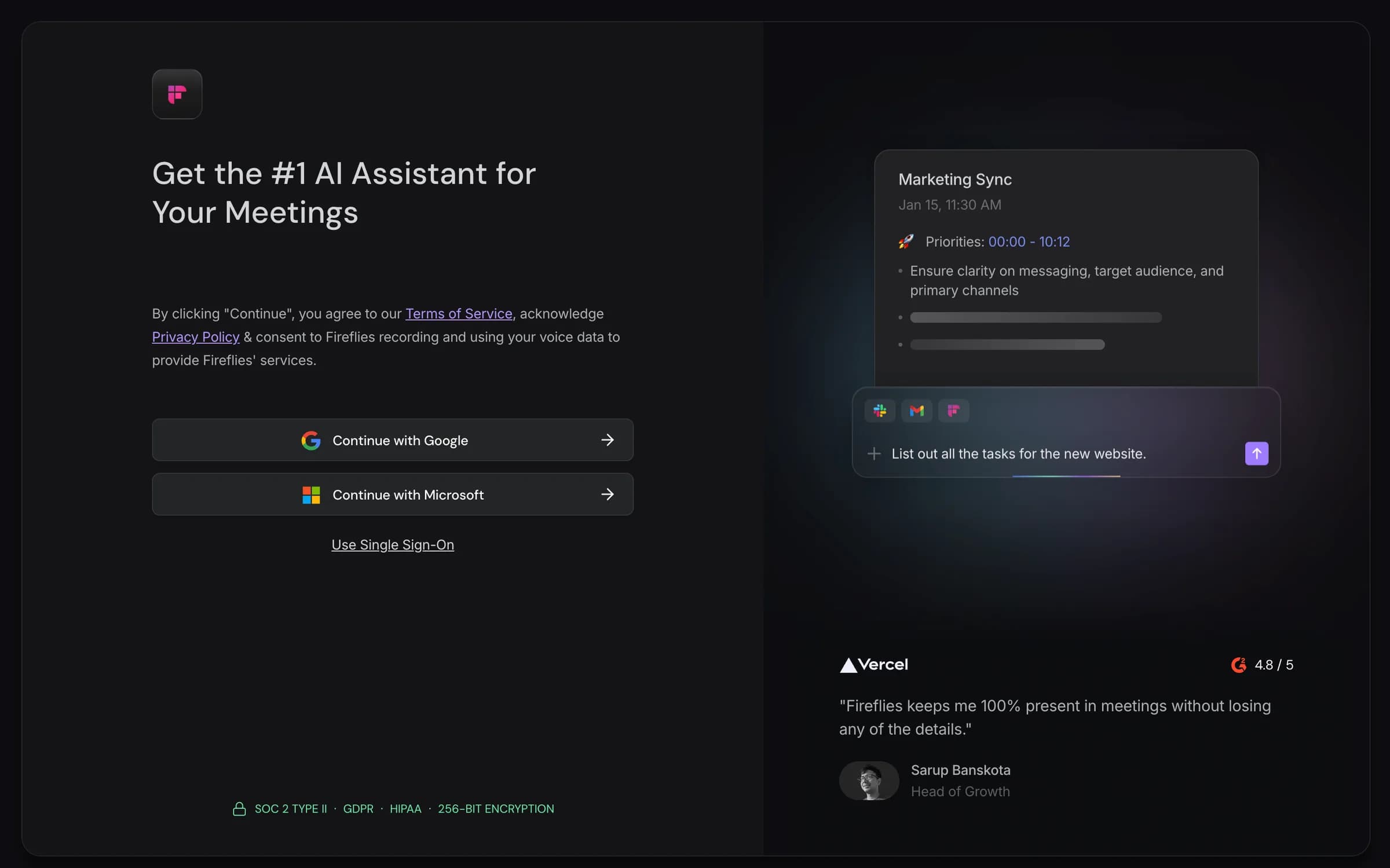
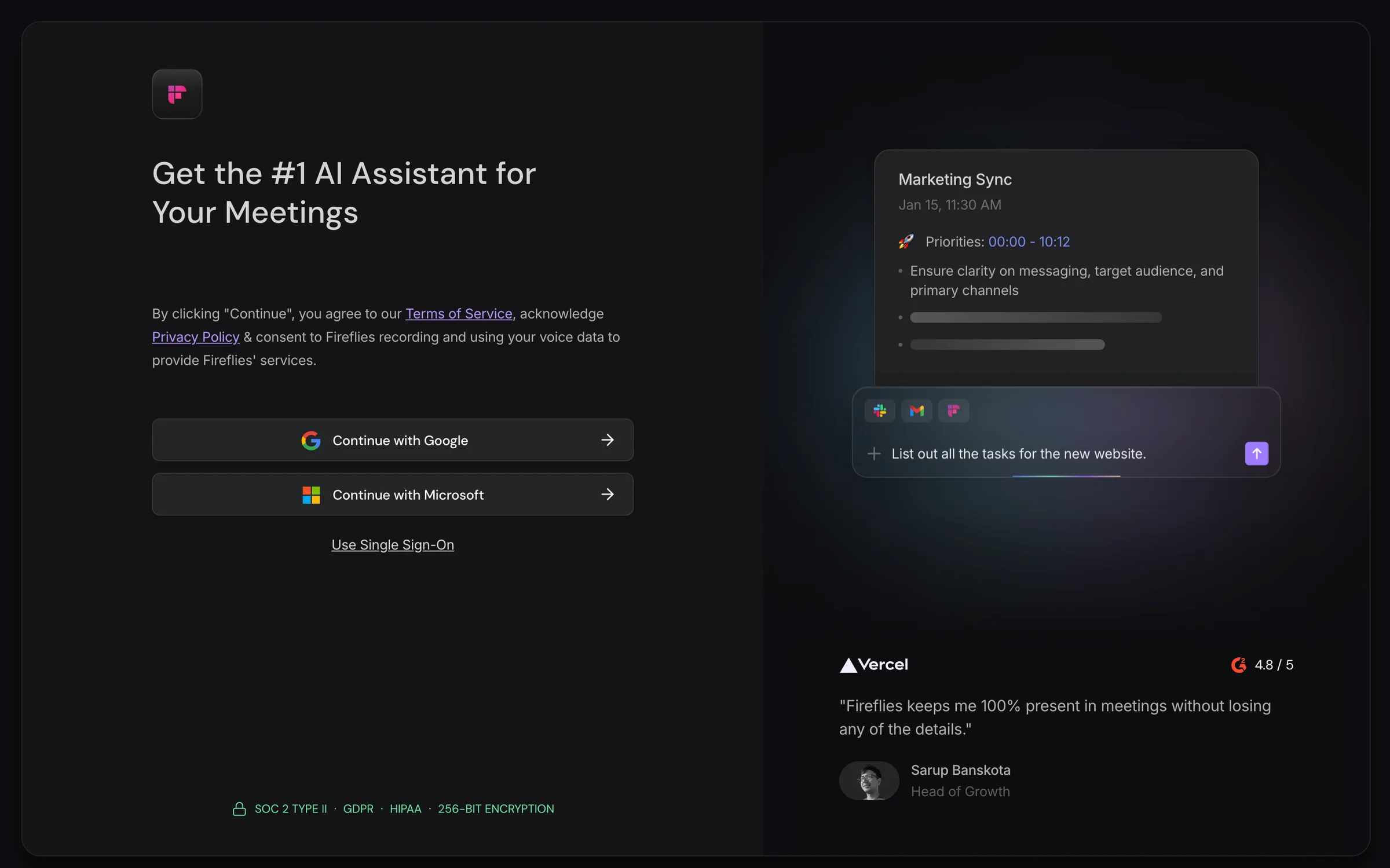
The Fireflies login page is app.fireflies.ai/login, and you sign in with "Continue with Google" or "Continue with Microsoft". Pick the same Google or Microsoft (Outlook) account you used when you first set up Fireflies. If your company uses single sign-on, you'll be sent on to your company's SSO page after that step.
That's the short answer. The rest of this guide is for when it doesn't work: a forgotten password, the wrong Google account, a team invite stuck in spam, an SSO login that won't finish, or the most common one of all, Fred (the Fireflies notetaker) not showing up to your meeting. Every step below comes from Fireflies' own help guide, checked November 2026.
Quick note on who's writing this. We make Weezly, and its AI Sales Assistant records calls and drafts follow-ups, so it competes with Fireflies. We've used Fireflies ourselves. There's a section about Weezly near the end; everything above it is just the login help you came for.
How to log in to Fireflies
With Google or Microsoft
Fireflies' help article on logging in lists two ways to sign in (checked November 2026):
Go to app.fireflies.ai/login.
Choose Continue with Google or Continue with Microsoft (for Outlook and Microsoft 365 accounts).
Pick the account your Fireflies workspace belongs to and approve the sign-in.
Fireflies works with your calendar, so most people sign in with their work Google or Microsoft account, the one their meetings live in.
With your company's single sign-on (SSO)
If your company has enforced SSO for its email domain, Fireflies sends you to the company SSO page after the Google or Microsoft step, according to its SSO help article. If your IT team gave you a company-specific SSO link, use that link rather than the general login page. SSO and SCIM provisioning are Enterprise features on Fireflies' pricing page (November 2026), so if your company isn't on Enterprise, you'll just use Google or Microsoft.
On your phone
The mobile app is called "Fireflies: AI notetaker" on iOS and Android. Fireflies' mobile app article says you can sign in with Gmail, Outlook or a Fireflies account, and the purple mic button records meetings in person.
Can't log in to Fireflies? Start here
Most login problems come down to one of six things. Find yours below.
1. You forgot your password
In the main web app, sign-in runs through Google or Microsoft, so there's no separate Fireflies password to reset there. A forgotten password is a Google or Microsoft password: reset it through Google's or Microsoft's own account recovery, then come back and choose the same option on the Fireflies login page. If your situation is different (for example, you're locked out of an account another way), contact Fireflies support through the chat described below.
2. You signed in, but your meetings and notes are gone
This almost always means you picked a different Google or Microsoft account from the one your Fireflies workspace uses. If you're signed in to several accounts in the same browser, Fireflies' troubleshooting article says to make sure you choose the right one. Log out, sign in again, and pick your work account this time.
3. The login page won't load or keeps looping
Fireflies' troubleshooting guide for login issues suggests, in order:
Clear your browser's cache and cookies.
Try an incognito or private window.
Turn off browser extensions, especially ad blockers and privacy tools.
Use a supported browser: Chrome, Firefox or Safari.
If none of that helps, check status.fireflies.ai to see whether Fireflies itself is having an outage.
4. Your company's SSO won't let you in
Use your company's own SSO link, not the general login page. If it still fails, the setup on your company's side may be the problem. Fireflies lists SSO setup problems among the account issues its support team handles, so ask your IT admin to check the configuration and contact Fireflies support if needed.
5. You hit a login limit or another account error
Some messages aren't fixed in the browser. Fireflies' troubleshooting article puts account issues such as a "login limit" in this group: they need Fireflies support, not more retries.
6. You were invited to a team and can't find the invite
Team invites come by email from "Fred at Fireflies", and Fireflies' help guide warns they can land in spam. Check spam and promotions, open the email, click Join Team, then Accept Invitation. Make sure you sign in with the same email the invite was sent to. If you still can't find it, ask your admin to send the invite again or share a join link.
Still stuck?
Fireflies' support team answers through the purple chat widget inside the app. Its help guide is at guide.fireflies.ai.
For admins: how to invite your team
From Fireflies' teammate invite article (checked November 2026): go to Settings > Team > Teammates and groups, or open your profile menu and choose My Team. You can invite people by link, by email or by company domain, and you can choose to add everyone from your domain automatically. Each teammate uses a paid seat, so check your seat count before sending a domain-wide invite.
Logging in to Fireflies vs. getting Fred into your meetings
A lot of "Fireflies isn't working" searches aren't about the login at all. You're signed in fine; it's Fred, the notetaker bot, that didn't join the call. Those are two separate things:
Your Fireflies login gets you into the app: Google, Microsoft or SSO.
Fred joining meetings depends on your calendar connection, your auto-join settings and the meeting platform.
Fireflies' guide on why Fred didn't join your meeting lists these checks (November 2026):
Connect your calendar. Make sure your Google or Outlook calendar is connected in Settings.
Turn on auto-join. Check that "Auto-join calendar meetings" is switched on.
Check your Meeting Rules. A rule can stop Fred from joining certain meetings.
Check Zoom or Teams admin settings. Your company's Zoom or Teams settings can block bots.
Check the invite. It needs a valid meeting link, and Fred has to be invited before the meeting starts. For Zoom, the passcode needs to be in the invite or the link.
Reconnect the integration. Disconnect and reconnect your Zoom or Teams integration.
Google Meet: Meet may hold Fred under "With potential risks". The host can admit Fred from that menu.
Meetings that need sign-in to join will block Fred.
Finish onboarding at app.fireflies.ai/setup if you skipped steps.
One more: if Fred was removed within 3 minutes of joining, there won't be a recap.
And when you want Fred to leave
Fireflies' removal article gives three ways to stop a recording in progress: remove Fred from the participant list, click Stop on the Live banner in your dashboard, or type /ff leave in the meeting chat. To skip one meeting, remove the Fireflies address from the invite or switch that meeting off under Upcoming. To change it for all meetings, use Recording Rules or set auto-join to "Only when I invite".
Logged in and wondering what else is out there?
Plenty of people search for the Fireflies login while they're deciding whether to stay or upgrade. If that's you, here's an honest comparison. If it isn't, you have everything you need above.
Fireflies is a strong notetaker, and it has a free plan. On its pricing page (November 2026): Free at $0 with 400 minutes of storage per team and 20 AI credits; Pro at $18 a seat billed monthly or $10 billed yearly; Business at $29 monthly or $19 yearly, its most popular plan, with unlimited storage, conversation intelligence and coaching analytics; and Enterprise at $39 a seat, billed yearly only, with SSO, SCIM, the API and data residency. It works across Zoom, Teams and Google Meet, connects to 40+ tools on Pro, and for sales teams it has a Follow-Up Email Generator AI Skill plus CRM autofill and deal intelligence for HubSpot and Salesforce on Business and Enterprise. If all you need is good notes and follow-ups after calls, it does that job well.
We've used Fireflies to record meetings, get transcripts and create meeting summaries automatically. It joins meetings and records them on its own, saves a lot of note-taking, makes it easy to search back through earlier conversations, and pulls out key takeaways and action items, which helps when you're keeping track of sales conversations. What we'd like to be better: speaker identification wasn't always accurate, transcripts and summaries sometimes missed important context, having a bot join every meeting can feel intrusive, and some limits come down to the plan and its AI credits. It solves a real problem and saves sales teams time, but if you rely on it every day, accuracy and reliability matter.
Where people tend to look elsewhere is everything before the call. A notetaker starts working once a meeting is on the calendar. Someone still has to find the lead, reach them and book the meeting, usually in two or three other tools.
Weezly's AI Sales Assistant puts the call recorder in the same seat as the outreach that books the calls:
It joins, records and drafts the follow-up. Like Fireflies, it writes the follow-up email draft after your call, ready for you to edit and send.
In-person meetings too. It records on the Weezly iOS and Android apps.
Your CRM. Recordings go into HubSpot by themselves. Any other CRM connects through the Meetings API.
The calls come from the same seat. The Multichannel seat also includes a LinkedIn sender and an email sender in Weezly Outreach, and the leads database with 300M+ contacts. Find the lead, reach them, book the call, then follow up, all in one login.
On price, the AI Sales Assistant is part of Weezly's Multichannel seat at $99 a month per seat. Each seat adds 20 recording hours a month to a shared pool for your workspace, and extra hours are $19 per 10. It isn't in the $59 Growth plan. That's more than Fireflies Pro on its own, so if you only want a notetaker, Fireflies' free or Pro plan may be the better fit. The Weezly seat makes sense when you'd otherwise pay for an outreach tool, a lead database and a notetaker separately.
You can try it with a free trial: 21 days on the Multichannel seat. Compare plans on our pricing page, or get started free.
Fireflies login FAQ
What is the Fireflies login URL?
It's app.fireflies.ai/login. If your company has its own SSO link, use that one instead.
Can I log in to Fireflies with Google or Microsoft?
Yes. Those are the two sign-in options Fireflies' help guide lists for the web app: Continue with Google and Continue with Microsoft (Outlook). Choose the same account your workspace was created with.
How do I reset my Fireflies password?
Sign-in to the web app runs through Google or Microsoft, so you reset the password with Google or Microsoft, then sign in to Fireflies again. For any other account problem, contact Fireflies support through the in-app chat.
Does Fireflies support SSO?
Yes. SSO and SCIM are Enterprise features (pricing page, November 2026). If SSO is enforced for your domain, Fireflies sends you to your company's SSO page after the Google or Microsoft step.
Why didn't Fred join my meeting?
The most common reasons are a calendar that isn't connected, "Auto-join calendar meetings" switched off, a Meeting Rule, Zoom or Teams admin settings that block bots, or an invite without a valid meeting link. On Google Meet, the host may need to admit Fred from the "With potential risks" menu.
How do I stop Fireflies from joining my meetings?
For a meeting in progress, remove Fred from the participants, click Stop on the Live banner, or type /ff leave in the chat. For all meetings, set auto-join to "Only when I invite" or change your Recording Rules.
Is Fireflies free?
Yes, Fireflies has a free plan with 400 minutes of storage per team and 20 AI credits. Paid plans start at $18 a seat a month for Pro, or $10 billed yearly (pricing page, November 2026).