To use LinkedIn well, do four things in order: build a profile that says who you help and how, connect with people you actually know or want to know, take part in conversations before you post your own, and message people one at a time with a real reason to talk. That's the whole method. The rest of this guide shows you how to do each step, what to write, and how much time it takes.
LinkedIn calls itself the world's largest professional network, and a basic account is free (LinkedIn Help). People use it for three main reasons: to find a job, to build a professional reputation, and to find customers or partners. The steps are the same for all three; only the people you connect with and what you say to them change.
We checked every setting and number below against LinkedIn's own help center in November 2026. Where LinkedIn doesn't publish a number, we say so.
Who's writing this: we make Weezly, a tool for LinkedIn outreach, so we spend our days watching what works on LinkedIn and what gets ignored. There's a short section about Weezly at the end, for people who use LinkedIn to sell. Everything before it is just the guide.
How to use LinkedIn in 7 steps
Create your account and pick a custom profile URL.
Add a photo and a cover image so people recognize you.
Write a headline and About section that say who you help and how.
Fill in experience and skills, and get verified.
Connect with the right people, starting with people you know.
Engage before you post: comment on other people's posts, then share your own.
Start conversations by message, one person at a time.
Step 1: Create your account and claim your URL
Go to linkedin.com, sign up with your email or a Google account, and follow the prompts for your name, location and current job. Two settings are worth doing on day one:
Custom profile URL. By default your public URL ends in a string of numbers. Change it to your name (linkedin.com/in/yourname) under "Edit public profile & URL" on your profile. Custom URLs are first come, first served (LinkedIn Help), so claim yours early. Put it on your CV and in your email signature.
Public profile visibility. Your public profile can show up on Google and Bing (LinkedIn Help). Leave it on if you want to be found. LinkedIn also warns that turning it off can make it harder to recover your account if you lose access to your email.
Step 2: Add a profile photo and a cover image
This is the single biggest quick win. LinkedIn says members with a profile photo receive up to 2x more profile views and 3x more connection requests (LinkedIn Help).
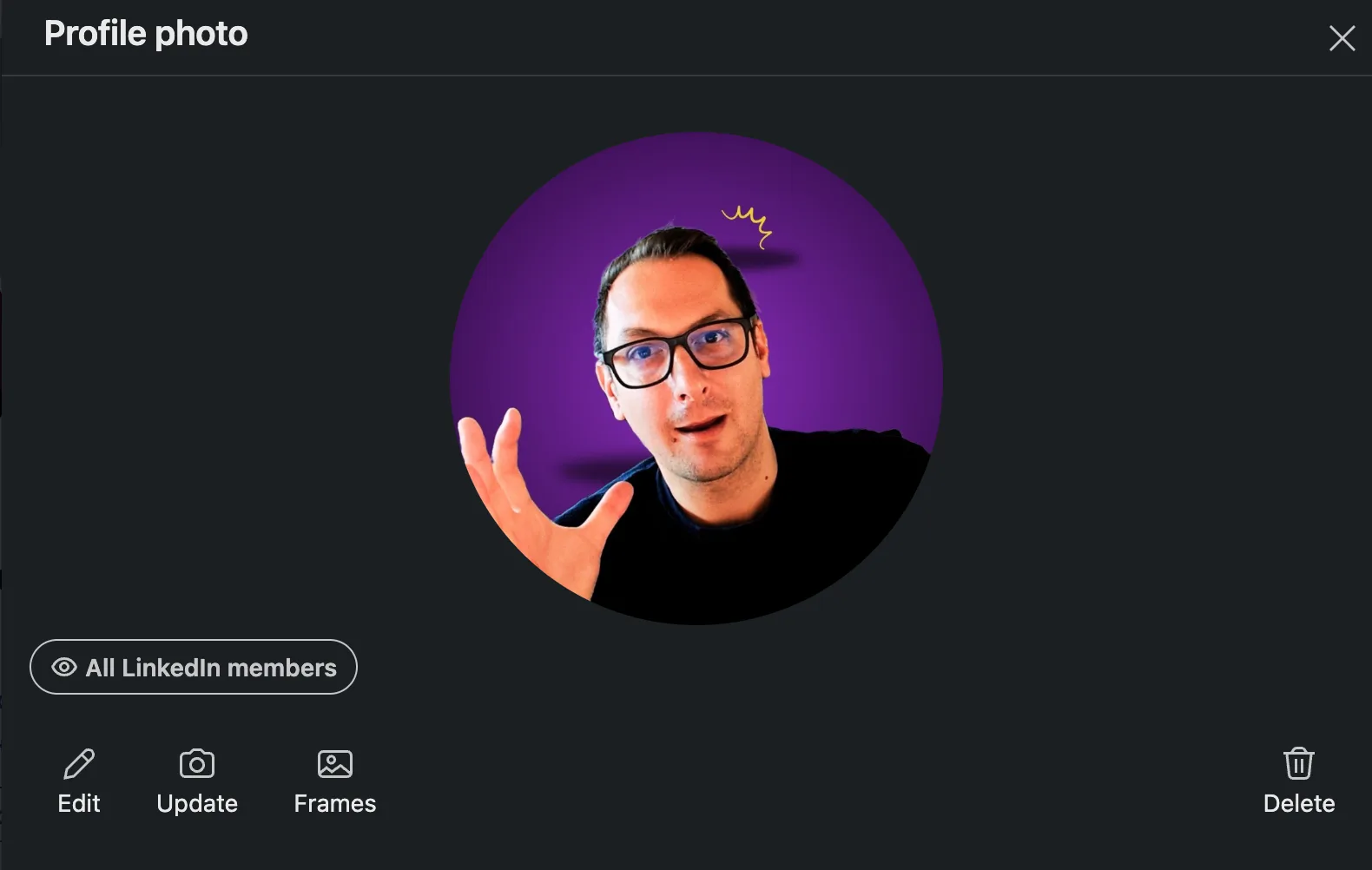
Photo: your face filling most of the frame, a plain background, good light, and the way you'd look meeting a client. A recent phone photo by a window beats an old studio shot.
Cover image: LinkedIn recommends 1584 x 396 pixels, as a JPG or PNG under 8 MB (LinkedIn Help). Use it to say what you do in a few words, or show your work. Keep text away from the bottom left, where your photo covers it.
Step 3: Write a headline and About section people understand
Your headline follows you everywhere: under your name in search, on every comment and in every invitation. Most people waste it on a job title. A better formula is who you help + with what + proof or detail.
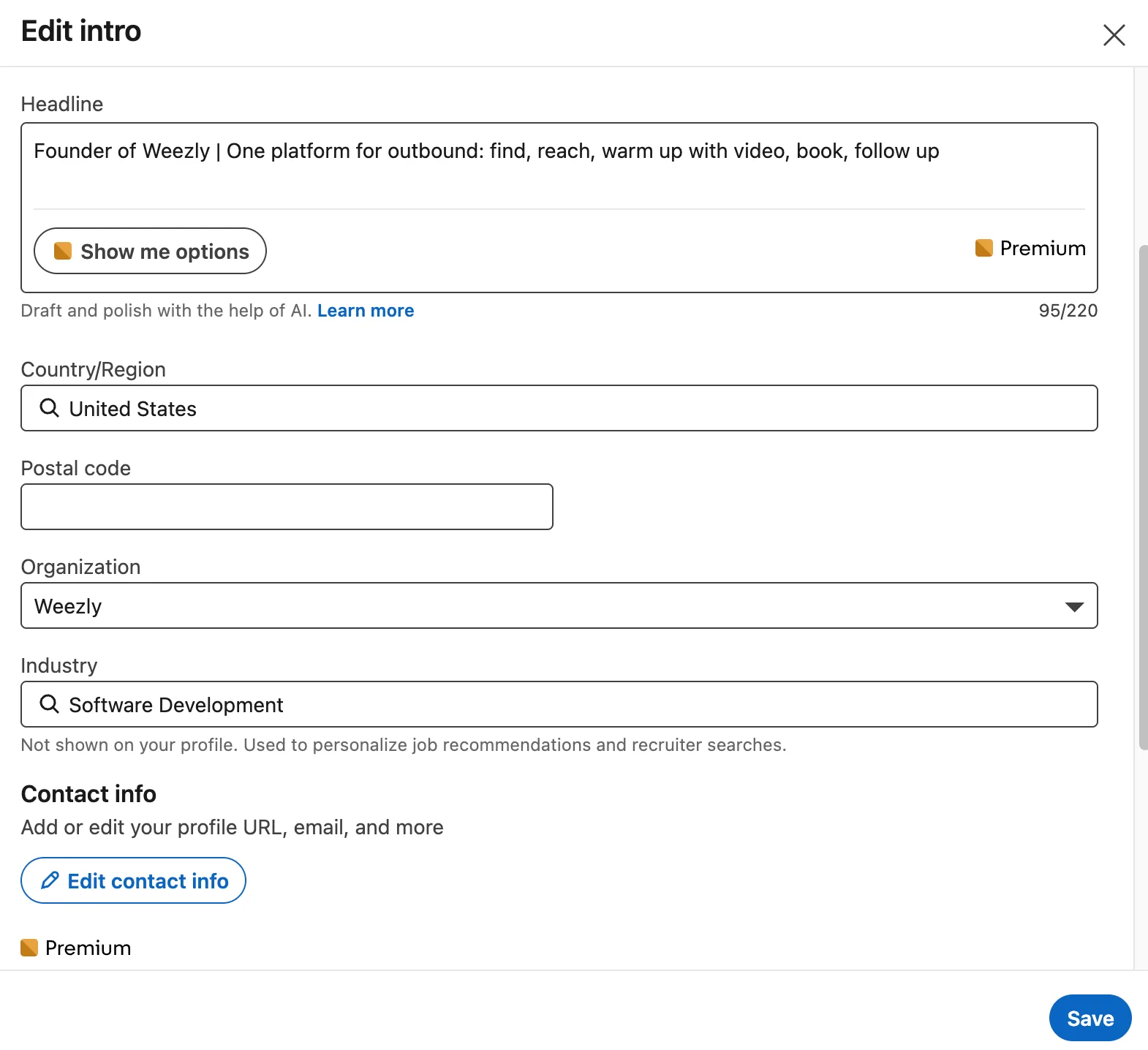
Instead ofTryAccount Executive at NorthwindHelping finance teams close the books in 3 days, not 10 | AE at NorthwindStudent at University of LeedsFinal-year computer science student | Building data tools in Python | Open to graduate rolesFounderFounder of Brightpath | We help B2B SaaS teams turn trials into paying customers
The headline field currently allows about 220 characters, but only the first part shows in search results and on mobile, so put the important words first.
Your About section is your elevator pitch in your own voice. Write it in the first person, in short paragraphs:
Line 1: who you help and the result you get them. Only the first few lines show before "See more", so this line has to earn the click.
The middle: how you do it, two or three concrete examples or results, and what you care about.
The end: what someone should do next: "Message me if you're hiring a data analyst" or "Book a call through the link in my Featured section".
Step 4: Fill in experience and skills, and get verified
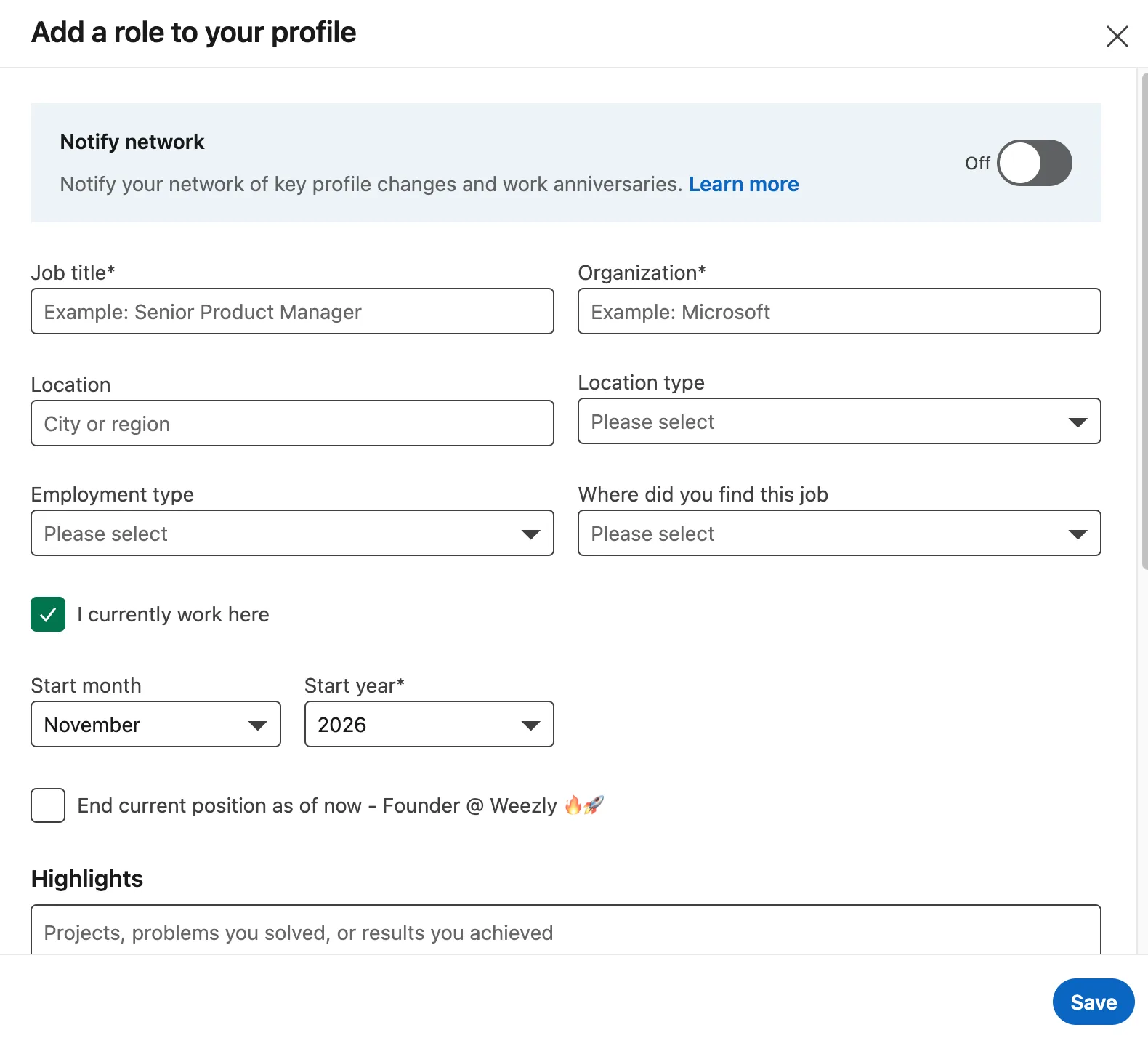
Experience: under each role, write two to four lines on what you achieved, not a list of duties. Numbers help: "Grew the newsletter from 2,000 to 11,000 readers in a year".
Skills: you can add up to 100 (LinkedIn Help). Don't add 100. Pick the 10 to 20 that match the jobs or clients you want, because recruiters and buyers search by skill.
Featured: pin your best work at the top of your profile: a post that did well, a case study, a portfolio link or a booking page.
Verification: LinkedIn offers free identity, workplace and education verification, and says verified members see 60% more profile views on average (LinkedIn Help). Identity checks run through CLEAR in the US, Canada and Mexico, DigiLocker in India and Persona in many other countries; workplace verification uses your work email.
Step 5: Build a network that's actually useful
A network is useful when the people in it would recognize your name. That matters more than the count.
Connect vs. follow
A connection is two-way: you both accept, you become 1st-degree connections and you can message each other for free. Their connections are your 2nd-degree network, and theirs are your 3rd. Following is one-way: you see someone's public posts without connecting, and anyone can follow your public posts and articles (LinkedIn Help). Follow people whose ideas you want in your feed; connect with people you want to talk to.
Who to connect with first
Current and former colleagues, classmates and teachers.
People you've met at events, on calls or in communities.
People in the job, industry or company you're aiming for, with a note saying why.
Add a note, and keep it short
An invitation with a reason gets accepted far more often than a blank one. Notes are short (about 200 characters on a free account, by most counts), so say one specific thing:
"Hi Priya, I enjoyed your talk on onboarding at last week's product meetup, especially the part about the first 10 minutes. I'm working on the same problem at Brightpath. Would be glad to connect."
"Hi Leo, I'm a final-year student applying for analyst roles at Northwind. I saw your post about the graduate scheme and would love to follow your work."
Never pitch in the invitation. You're asking to connect, not to sell.
The limits to know
You can have up to 30,000 1st-degree connections; after that, Follow becomes the default button on your profile (LinkedIn Help).
LinkedIn limits how many invitations you can send, on free and Premium accounts alike, and can temporarily restrict you if you hit the limit (LinkedIn Help). It doesn't publish the number; users commonly report a ceiling of around 100 invitations a week. Inviting people who would recognize you keeps you well clear of it.
Step 6: Use the feed: comment first, then post
Your feed shows posts from your network, the companies you follow and content LinkedIn thinks you'll like, and what you react to and comment on shapes what you see next (LinkedIn Help). Train it: follow 20 to 30 people in your field, mute what you don't want, and switch the sort to Recent on desktop when you want the latest (LinkedIn Help).
Comment before you post
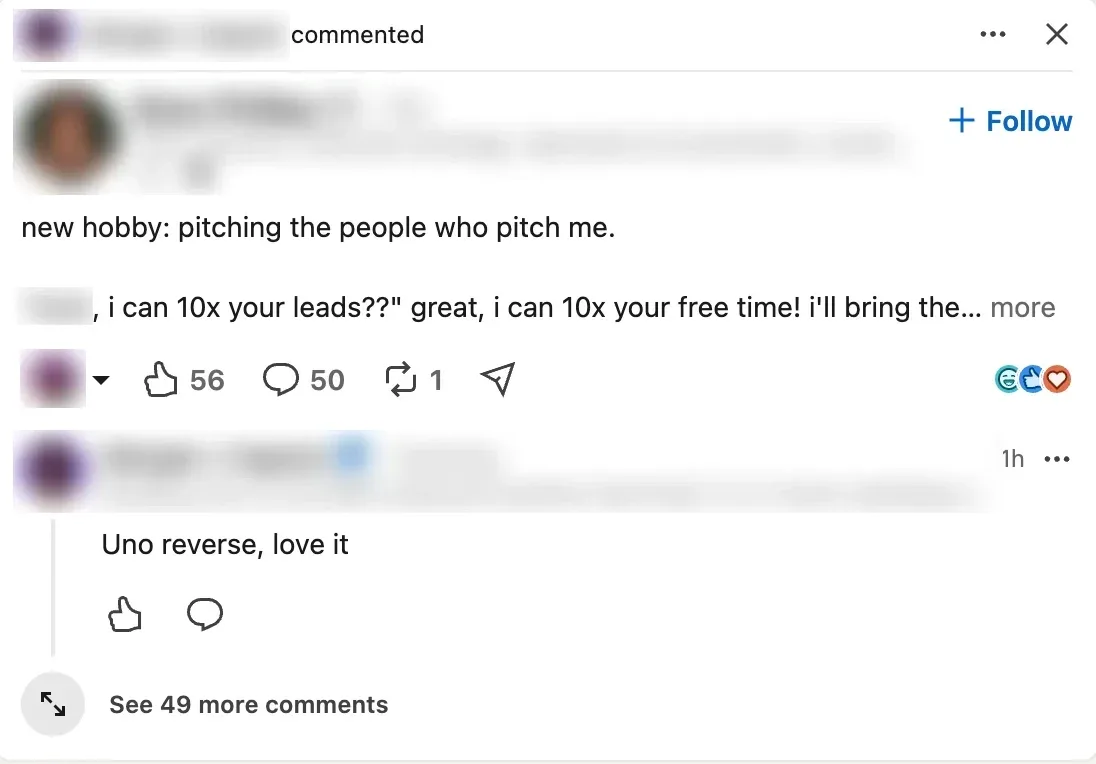
Thoughtful comments are the fastest way to get noticed when you're new, because your comment shows up in front of someone else's audience. A good comment adds something: a short example from your own work, a respectful disagreement, or a question the author will want to answer. "Great post!" adds nothing. Aim for three good comments a day for your first two weeks.
What to post
Write the way you'd explain something to a colleague. Posts that tend to work:
A lesson: something that went wrong, what you learned and what you'd do differently.
A how-to: a process you use, in five short steps.
An opinion with a reason: one thing in your field you think people get wrong.
Behind the scenes: a project, a result or a decision, with the numbers if you can share them.
Formatting tips: the first one or two lines decide whether people click "see more", so open with the point, not a warm-up. Use short paragraphs and white space. One idea per post.
The 4-1-1 rule
The 4-1-1 rule is a content habit borrowed from social media marketing: for every six posts, share four pieces of useful content from others (with your own take), one original post of your own, and one promotional post. It isn't a LinkedIn rule, just a reminder to give more than you ask. If you're starting out, a simpler version works: help first, promote rarely.
Step 7: Start conversations that go somewhere
Most of LinkedIn's value happens in messages, not on the feed. You can message any 1st-degree connection for free. To message someone outside your network you need InMail, which comes with Premium.
A good first message is short, specific and easy to answer:
Why them: something you noticed about their work.
Why now: a reason to talk today.
A small ask: a question they can answer in one line, not a 30-minute call.
"Thanks for connecting, Nora. I saw Brightpath is hiring two SDRs. When you scaled the team last year, what was harder: finding people or ramping them up?"
Reply within a day, keep a light follow-up a week later if you don't hear back, and stop after one follow-up. Persistence is fine; pressure isn't.
How to use LinkedIn to find a job
Turn on Open to Work. You choose who sees it: all LinkedIn members (which adds the green #OpenToWork photo frame), recruiters only, or only you (LinkedIn Help). "Recruiters only" is the discreet option if you're employed.
Set job alerts for the title and location you want, so new roles come to you.
Know the two apply buttons. Easy Apply sends your application inside LinkedIn; Apply takes you to the company's own site (LinkedIn Help). You can't edit or withdraw an Easy Apply application once it's sent, so check it first.
Go around the queue. After you apply, find the hiring manager or someone on the team and send a short note saying you applied and why you're a fit. One warm message beats twenty cold applications.
How to use LinkedIn for business
Create a Company Page for your business, and ask your team to list it as their employer so their profiles link to it.
Let your people be the voice. Posts from people usually travel further than posts from company pages, so encourage the founder and team to post about the work.
Turn your profile into a landing page. Headline that names the customer, About that ends with a next step, and a booking link or case study in Featured.
Measure conversations, not likes. The number that matters is how many real conversations with potential customers you start each week.
Free or Premium: do you need to pay?
You can do everything in this guide on a free account. Premium adds things like InMail credits, a longer list of who viewed your profile, and private browsing while still seeing your own viewers: on Premium you can browse in private mode and still see who viewed you in the last 90 days, which Basic can't (LinkedIn Help).
The main plans are Premium Career (for job seekers), Premium Business (for professionals and small businesses), and Sales Navigator (for salespeople). LinkedIn shows the price at checkout, and it varies by country and by when you signed up. In the US in November 2026, published price trackers list Premium Career at about $40 a month and Premium Business at about $70 a month billed monthly, with cheaper yearly billing. There's usually a free trial for a month, so try it when you have a specific goal, like an active job search.
LinkedIn dos and don'ts
DoDon'tUse a clear, recent photo of your faceLeave the photo blank or use a logoWrite a headline that says who you helpStop at your job titleAdd a short note to invitationsPitch in the connection requestComment with something usefulWrite "Great post!" and move onMessage one person with one reasonPaste the same long message to everyoneFollow up once, a week laterSend three follow-ups in three daysKeep it professional, but humanPost things you wouldn't say in a meeting
Your first 30 days on LinkedIn
Fifteen minutes a day is enough. Here's a plan that works for job seekers and business owners alike.
WeekFocusDaily habitWeek 1Profile: photo, cover, headline, About, experience, custom URL, verificationConnect with 5 people you knowWeek 2Feed: follow 20 to 30 people in your field, mute the noise3 thoughtful commentsWeek 3Your first two posts: one lesson, one how-to3 comments, 5 new connections with a noteWeek 4Conversations: message 10 people with a real reason to talkReply to every comment and message within a day
After a month you'll have a profile that converts visitors, a feed that teaches you something, and a handful of real conversations. That's when LinkedIn starts to compound.
Using LinkedIn to sell? Here's where it gets hard
If you use LinkedIn to find customers, step 7 is where the work piles up. Doing it properly means finding the right people, writing to each one, following up, and booking the call, for dozens of people a week. Most people end up with one of two bad options: send a few careful messages by hand and run out of time, or paste the same template to everyone and get ignored.
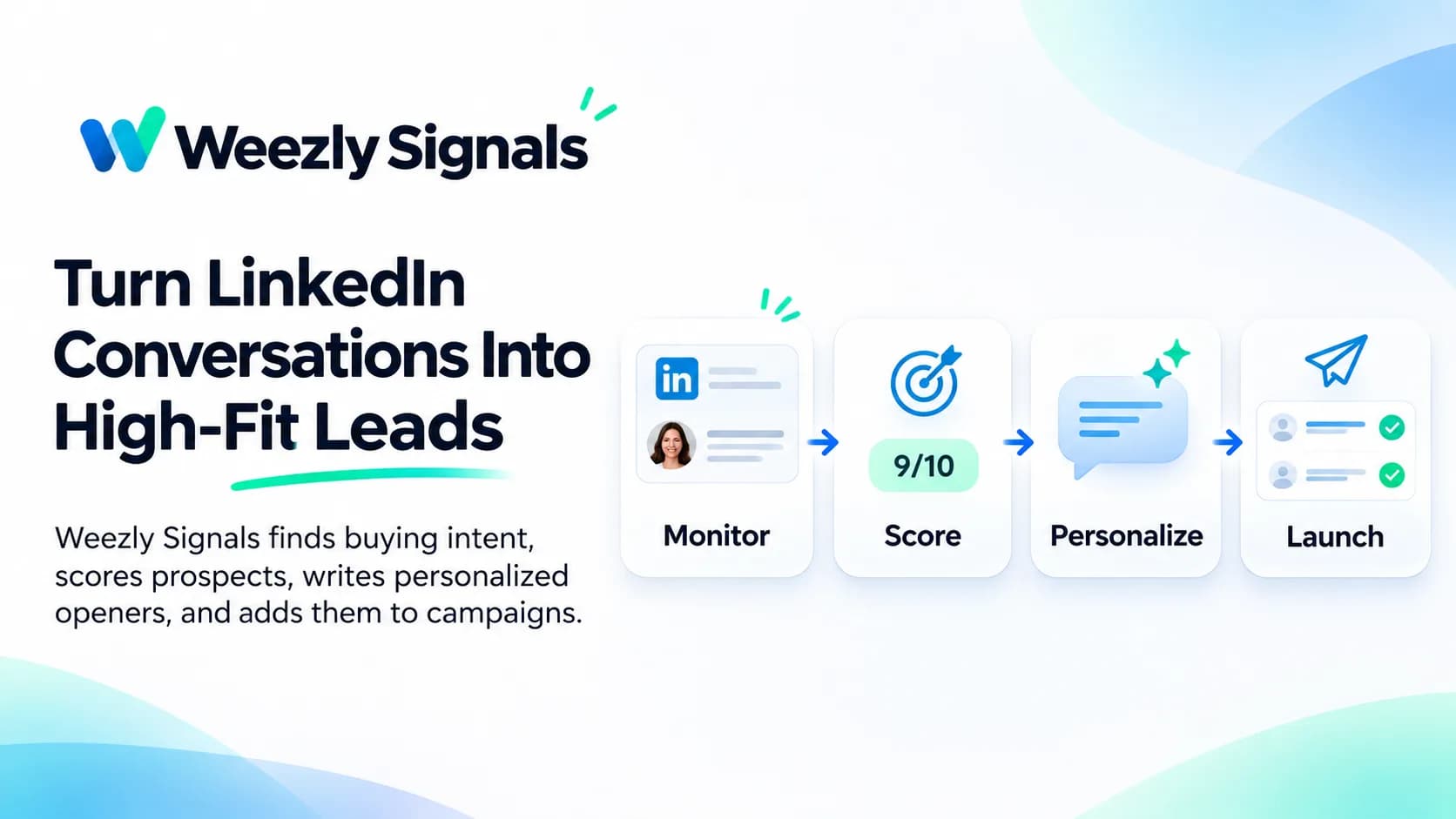
Weezly Outreach is the tool we make for the middle path: personal messages, at a pace one person couldn't manage by hand.
Find the right people. A leads database of 300M+ contacts, with 5,000 verified emails included in every seat. Weezly scores each lead from 1 to 10 against your ideal customer, so your invitations go to people who fit.
Send something they'll actually open. Record yourself for two minutes once, and Weezly makes a short AI video of you for each lead, in front of their own website, right in the LinkedIn DM. In our own campaigns, messages with video got 2.7x more replies, 68% of leads watched the video, and campaigns booked 38% more meetings (Video numbers, Weezly campaigns). AI video minutes are an add-on, from $99.
Follow up without forgetting. LinkedIn and email steps in one sequence, sent within daily limits and working hours you set, with every reply in one inbox.
Book the meeting in the same place. Your booking page sits under every video, so a lead who likes it can pick a time straight away.
Plans start at $59 a month per LinkedIn sender on the Growth plan. The $99 Multichannel seat adds an email sender and the AI Sales Assistant, which records your calls and drafts the follow-up. There's a free trial: 21 days on the Multichannel seat, 7 days on the Growth plan.
Want to see it on yourself first? Paste your LinkedIn profile into the live demo on our homepage and you'll get a real AI video in your own LinkedIn messages. Or start your free trial, and read our LinkedIn outreach guide for the playbook behind it.
How to use LinkedIn: FAQ
How do I use LinkedIn as a beginner?
Start with your profile: a clear photo, a headline that says who you help, and a short About section. Then connect with people you already know, comment on posts in your field for a week or two, and only then start posting and messaging. Fifteen minutes a day is enough.
Is LinkedIn free to use?
Yes. A basic account is free and covers your profile, connections, messages with connections, posting and job applications. Premium is an optional paid upgrade, with a free trial for a month.
How much does LinkedIn cost per month?
The basic account costs nothing. In the US in November 2026, published price trackers list Premium Career at about $40 a month and Premium Business at about $70 a month billed monthly, with lower yearly prices. LinkedIn shows your exact price at checkout, and it varies by country.
What is the 4-1-1 rule on LinkedIn?
It's a content habit, not an official LinkedIn rule: for every six posts, share four useful posts from others with your own take, one original post and one promotional post. The point is to give more than you ask.
What are the dos and don'ts of LinkedIn?
Do use a real photo, a clear headline, short notes on invitations and specific, useful comments. Don't pitch in connection requests, send the same long message to everyone, or follow up more than once a week.
How many connection requests can I send on LinkedIn?
LinkedIn doesn't publish the number, and it applies to free and Premium accounts alike. Users commonly report a limit of around 100 invitations a week. The total cap is 30,000 1st-degree connections.
Can people see that I viewed their LinkedIn profile?
By default, yes: they see your name and headline. You can switch to private mode under your visibility settings. On a free account, browsing privately also hides who viewed your profile; on Premium you can browse privately and still see your viewers from the last 90 days.
Should I connect with people I don't know?
Yes, if you have a reason and you say it in the note: a shared interest, their work, or a role you're aiming for. Avoid mass-inviting strangers with no note: they rarely accept, and your weekly invitations are limited.